Getting started
After installing Zeroph Sentinel from the Atlassian Marketplace, navigate to Jira Settings > Marketplace apps > Zeroph Sentinel to access the app. Only site administrators can view and manage Sentinel.
No additional configuration is required to start scanning. The app ships with 68 built-in detection rules enabled by default and will begin scanning content immediately via real-time event triggers.
Dashboard
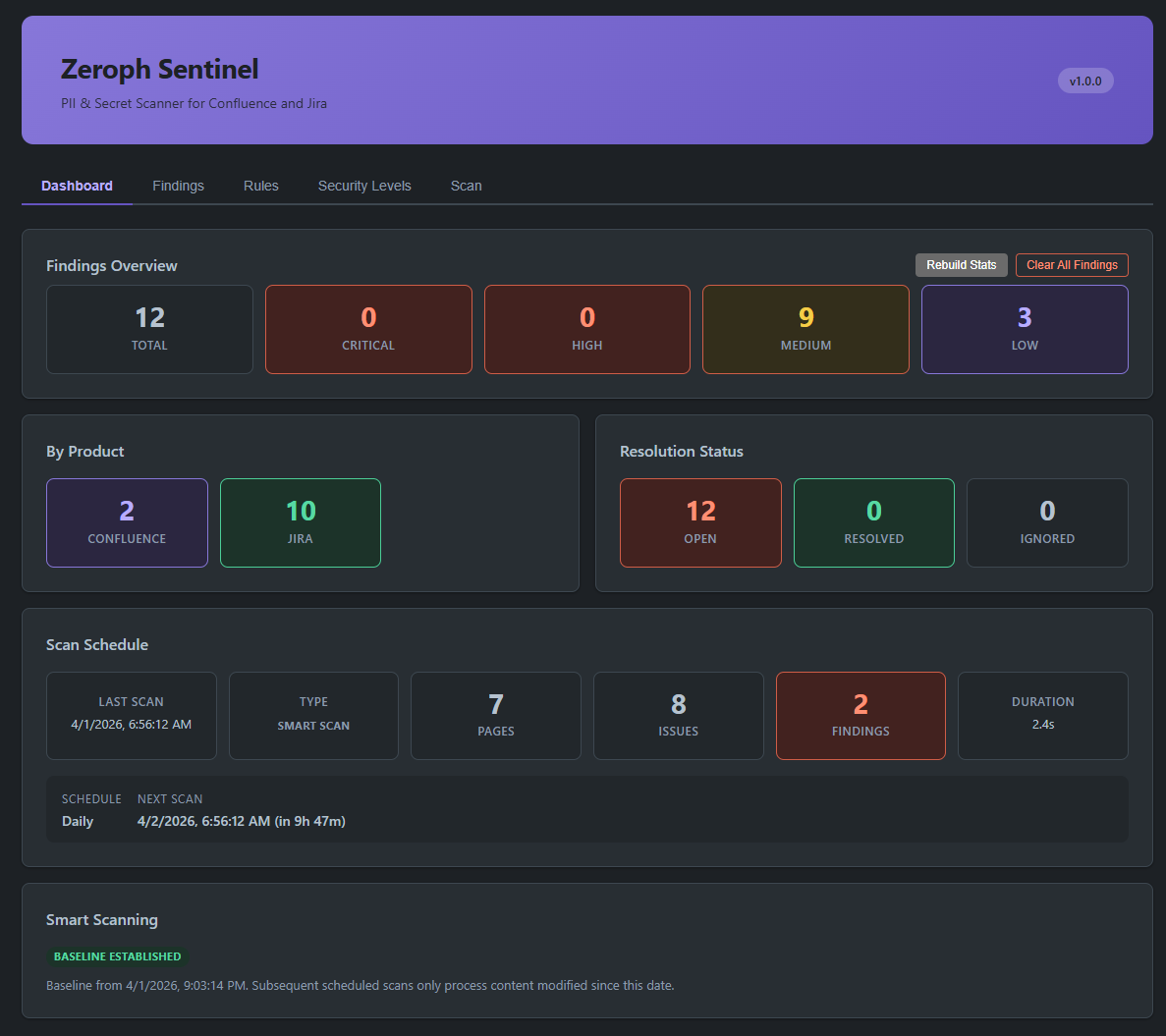
The dashboard shows a summary of your instance's security posture:
- Findings Overview breaks down total findings by severity (critical, high, medium, low).
- By Product shows how findings are distributed between Confluence and Jira.
- Resolution Status tracks how many findings are open, resolved, or ignored.
- Scan Schedule shows the most recent automated scan results, the configured scan frequency (hourly, daily, or weekly), and the estimated time of the next scheduled scan.
- Smart Scanning indicates whether incremental scanning is active and when the baseline was established.
Use the Rebuild Stats button if dashboard numbers appear out of sync with the findings table. Use Clear All Findings to permanently delete all findings and reset the dashboard to a clean state — this requires confirmation before taking effect.