Findings
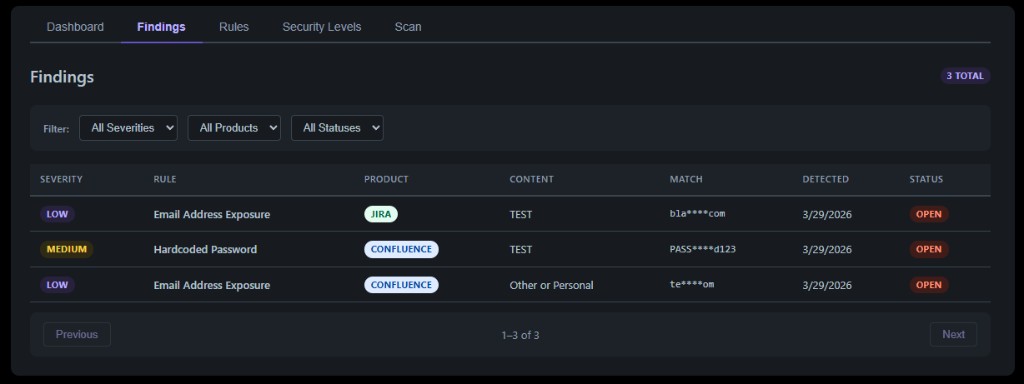
The Findings tab lists all detected issues. Each row shows severity, rule name, product, content title, the redacted match value, detection date, and status.
Permission-aware display
Findings are displayed based on the current user's permissions. The app checks whether you have access to each content item using your Atlassian credentials:
- If you have access to the content, the content title, redacted match value, and context snippet are displayed normally.
- If you do not have access, the content title is replaced with the content ID, and the match value and context snippet show "You do not have permission to view this content." The View in Confluence/Jira button is hidden.
This ensures that users who can view the findings dashboard cannot see content they would not normally have access to in Confluence or Jira.
Filtering
Use the filter bar to narrow results by severity, product, or status.
Finding details
Click any row to expand the finding detail panel, which shows:
- Detection details including rule name, category, severity, detection timestamp, and finding ID.
- Location including product, space or project, content title (or content ID if you lack access), and content ID. The View in Confluence or View in Jira button navigates directly to the source content (only shown if you have access).
- Matched value (redacted for security — sensitive values are masked with bullet characters).
- Context snippet showing surrounding text for context, with matched values redacted inline.
Status management
Each finding can be in one of three states:
- Open means the finding needs attention. Use Resolve to mark it as addressed or Ignore to dismiss it.
- Resolved means the finding has been addressed. Use Reopen if it needs review again.
- Ignored means the finding has been intentionally dismissed. Use Reopen to flag it again.