
Signing an issue
- Open the issue you want to sign.
- Locate the Signatures panel in the issue sidebar. If the panel is collapsed, click its title to expand it.
- Click Sign (or Re-sign if you have already signed).
- A fullscreen overlay opens with a signature canvas. You can draw a signature with your mouse, finger, or stylus, or switch to Type mode to produce a font-based signature from your display name.
- Optionally enter a printed name and, if 21 CFR Part 11 compliance is enabled, select a signing meaning.
- Click Save to record the signature.
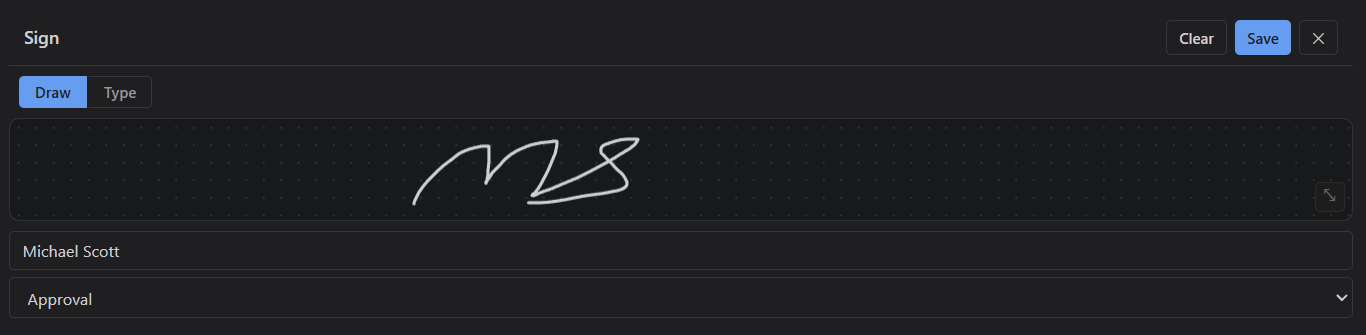
Your signature can optionally be saved to your account so it is automatically pre-filled the next time you sign any issue. This stored signature is private to your account.
Typed signatures
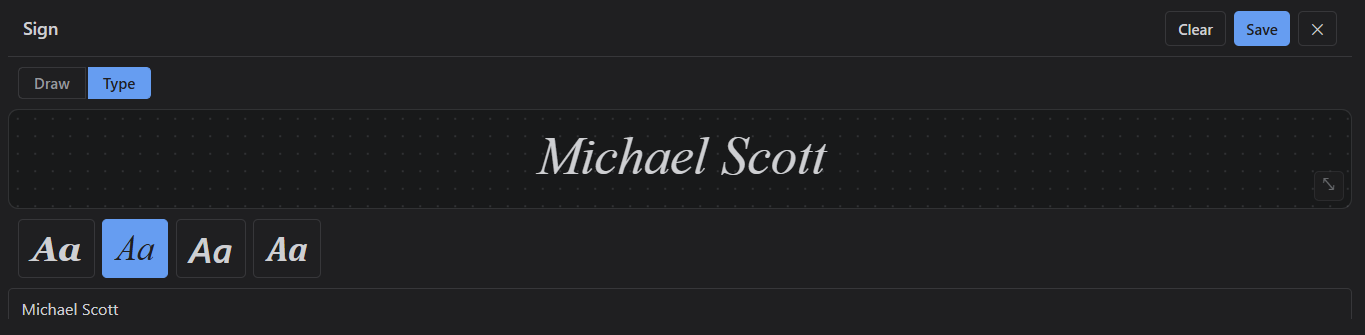
Switch to Type mode in the signature pad to choose from several font styles. The selected font renders your display name (or a custom name) as a signature. Typed signatures are stored as vector text rather than a rasterized image, so they render crisply at any size.
Mobile signing
The signature overlay uses the full available viewport, making it suitable for tablets and phones. Touch screens with stylus support benefit from pressure-sensitive stroke widths.
Signature history
Below the signing controls the panel shows a history of all signatures on the issue. Each card shows:
- The rendered signature (drawn strokes or typed text)
- Signer name and Atlassian identity
- Signing meaning (if CFR 11 is enabled)
- Timestamp
- Group membership (if assigned)
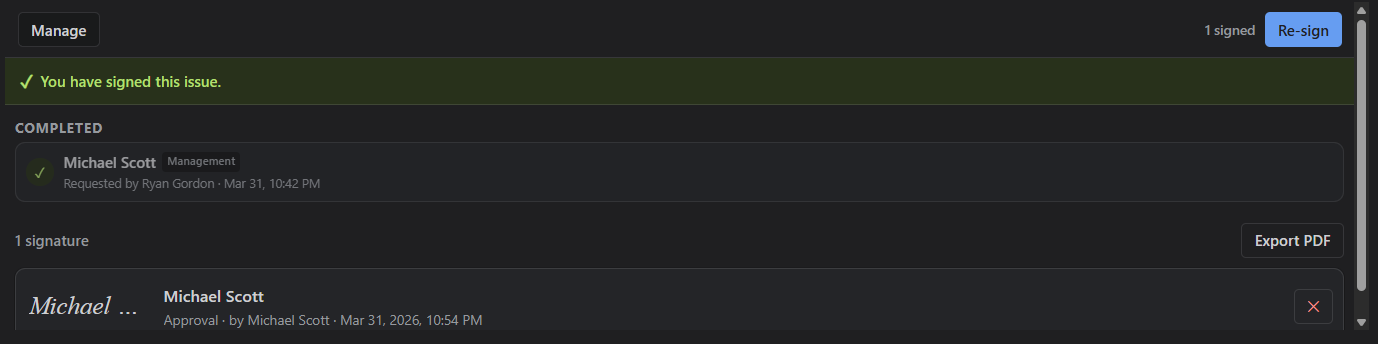
Authorized users can delete signatures. Deleting a signature that fulfilled a pending request automatically reverts that request to pending, so the signer must sign again.